Bidders
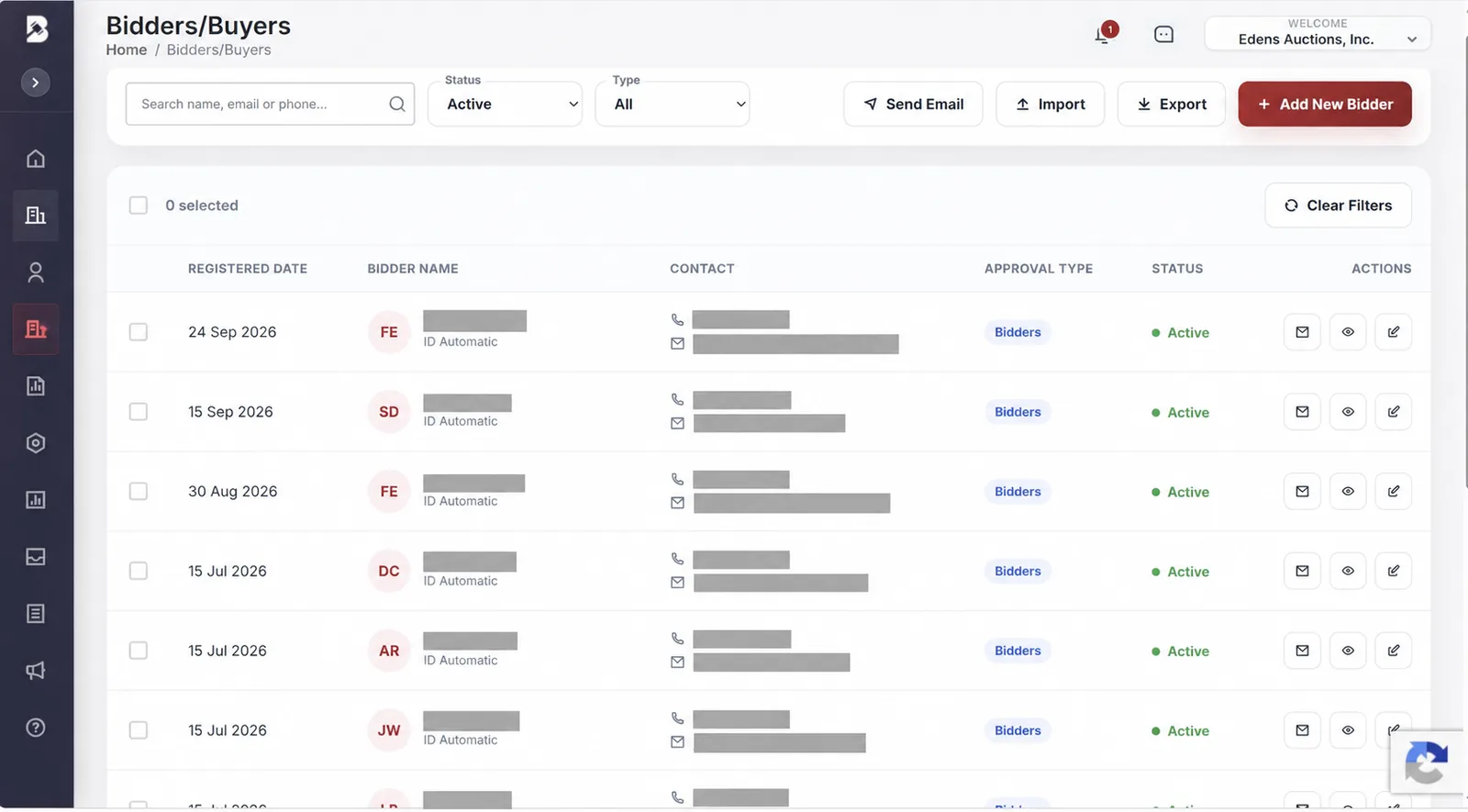
Bidders can sign up themselves on your bidder site, or you can add them in the admin. One BidBuyZoom bidder login can be used with more than one auction company; each company keeps its own bidder record.
Adding a bidder
- Tick Email this bidder a link to create a password and log in to send an invite. The link works for 7 days.
- If the person already has a BidBuyZoom bidder login with that email, they are told to sign in with their existing password instead.
- To send a new link later, open the bidder and click Send login invite.
Import and export
- Export downloads every bidder that matches your filters (not just the page on screen). Card numbers and login details are never included.
- Import takes an Excel or CSV file with a heading row. It reads the same columns as the export, so you can bring in a list from your old system or re-import an export. Click Download a blank import sheet for the headings. An Email column is required.
- Rows whose email is already on your list are skipped, and you see which rows were skipped and why.
- Importing sends nothing. Imported bidders show Not invited in the Online column, or Joined if they already use BidBuyZoom with that email.
Inviting bidders to online bidding
Moving from another online system? Add or import your bidders, then invite them to create a password.
- Use the Online filter to pick who to invite (for example Not invited), or tick bidders.
- Click Invite to Online Bidding. You see how many get a first invite, how many get a reminder, and who is skipped (already joined, no email, or emailed in the last 24 hours). You can look at each email before sending.
- Click Send. Emails go out one after another and the Online column updates as they are sent. Nothing is ever sent automatically.
- The first invite asks them to create a password. The link works for 30 days, and sending again keeps earlier links working.
- Later sends are reminders. Reminders include a line they can click to stop more reminders; they then show as Declined. Declined bidders are skipped unless you tick Send to them anyway.
- Someone who already uses BidBuyZoom with that email gets a short note to log in with their usual password instead.
- A bidder shows Joined once they create a password or log in.
- Bidders who sign up on your bidder site themselves show Joined right away.
- To change the Online status by hand, open the bidder and use Online bidding, or tick bidders on the list and click Set Online Status. Choose Not needed for people you never want to invite (for example counter-only buyers); they are skipped when you send invites. Changing the status sends nothing, and anyone who later creates a password or logs in changes to Joined by themselves.
- If an invited person tries to sign up instead, they are told you already added their email; they enter a code from their email and the password they typed becomes their password.
- You can change the invite wording under Company → Email Settings.
Cards
Bidders must save a card before they can register for a sale or bid. When a card is added, a $1.00 verification charge is made and refunded, which confirms the card is real and active. Saved cards let you charge winners after the sale with Charge Card on File.
Tick No card required on a bidder you trust (a regular buyer, someone who pays in person, or for testing). They can register and bid without a saved card. The bidder list shows a "No card required" tag, and the record shows who turned it on and when.
Rates and tax
- Buyer Premium and Credit Card Fees: tick and enter a percentage to give this bidder their own rate. Unticked, the sale or company rate applies.
- Sales Tax Exempt: choose Yes and the bidder is not charged sales tax.
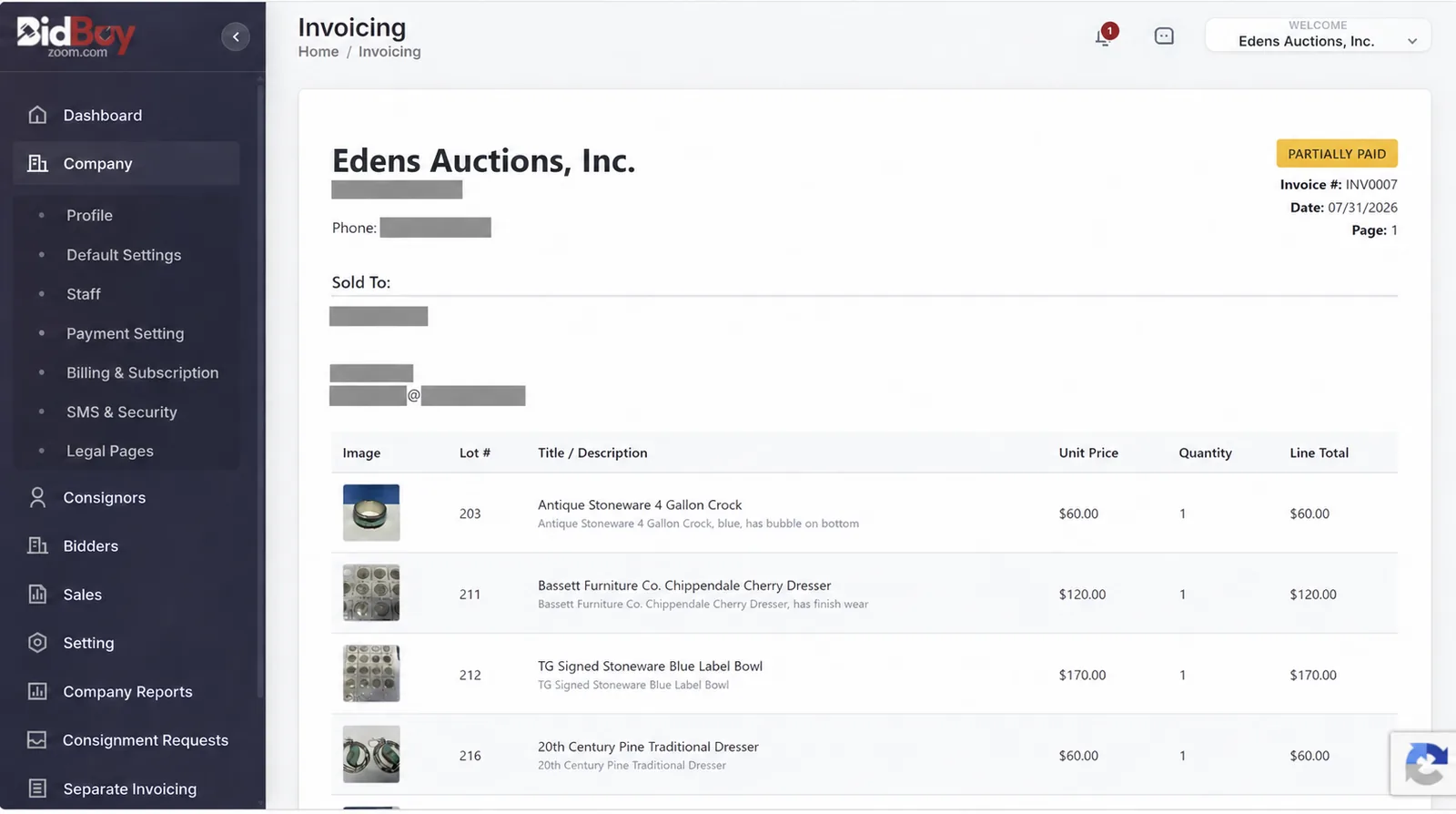
Invoices are worked out when the sale ends, so set a bidder's rates before the sale closes.