
Catalog Walkthrough
This walkthrough uses a WakeRobbin auction as an example. Its pictured lots have short test titles, and its dates, prices, and terms may change. Other auction companies can configure their sales differently. You can explore the catalog before signing in; registration and approval may be required before you bid or save a watched lot.
1. Read the auction overview
At the top of the catalog, check the auction name, status, start date, Begins Ending date and time zone, and seller. Select View Sale Details for the complete sale information, including the buyer's premium, payment methods, bidding increments, staggered ending, and bid extension settings. Read the full terms before bidding.
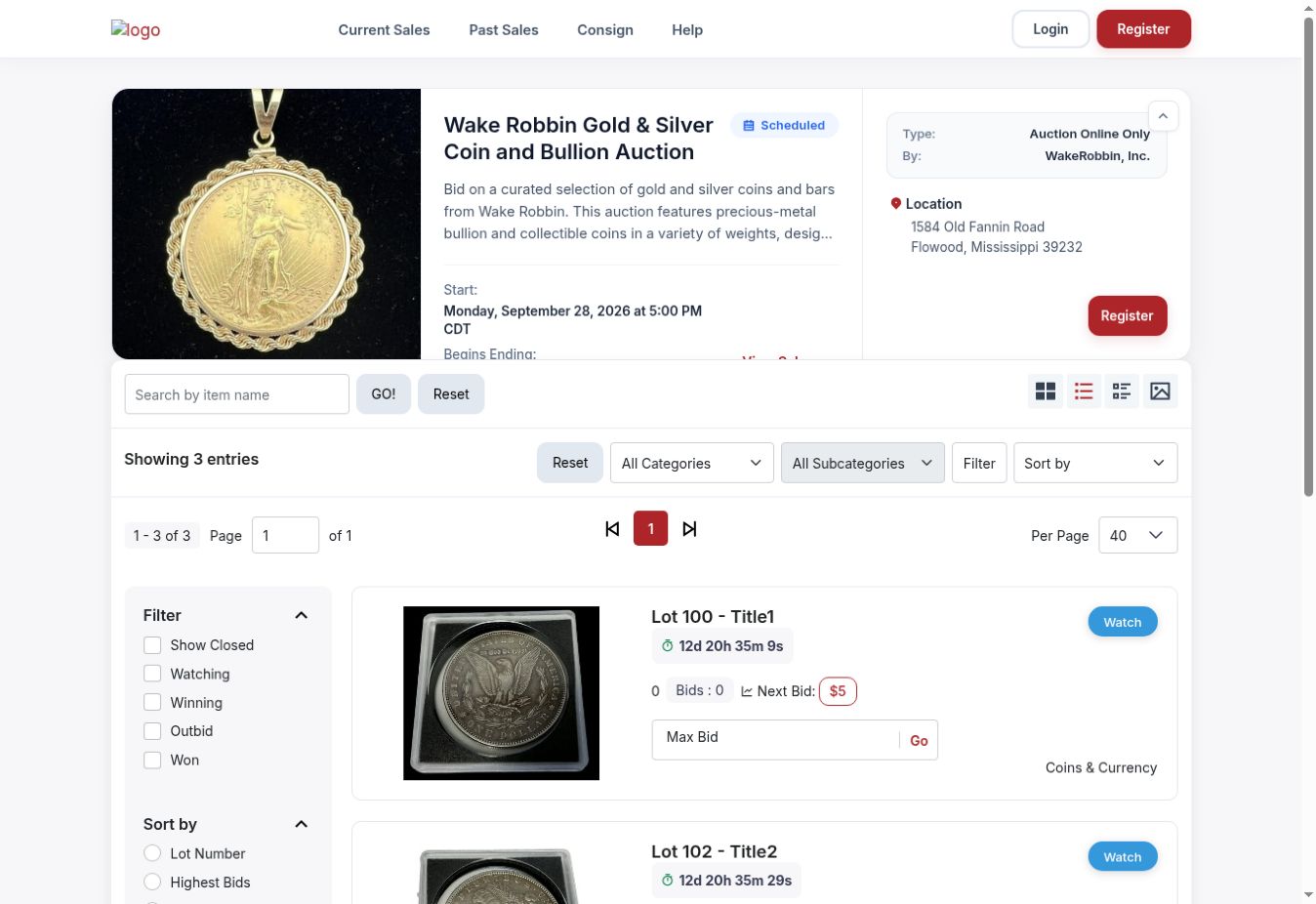 The auction header and catalog controls. “Scheduled” means bidding has not opened yet.
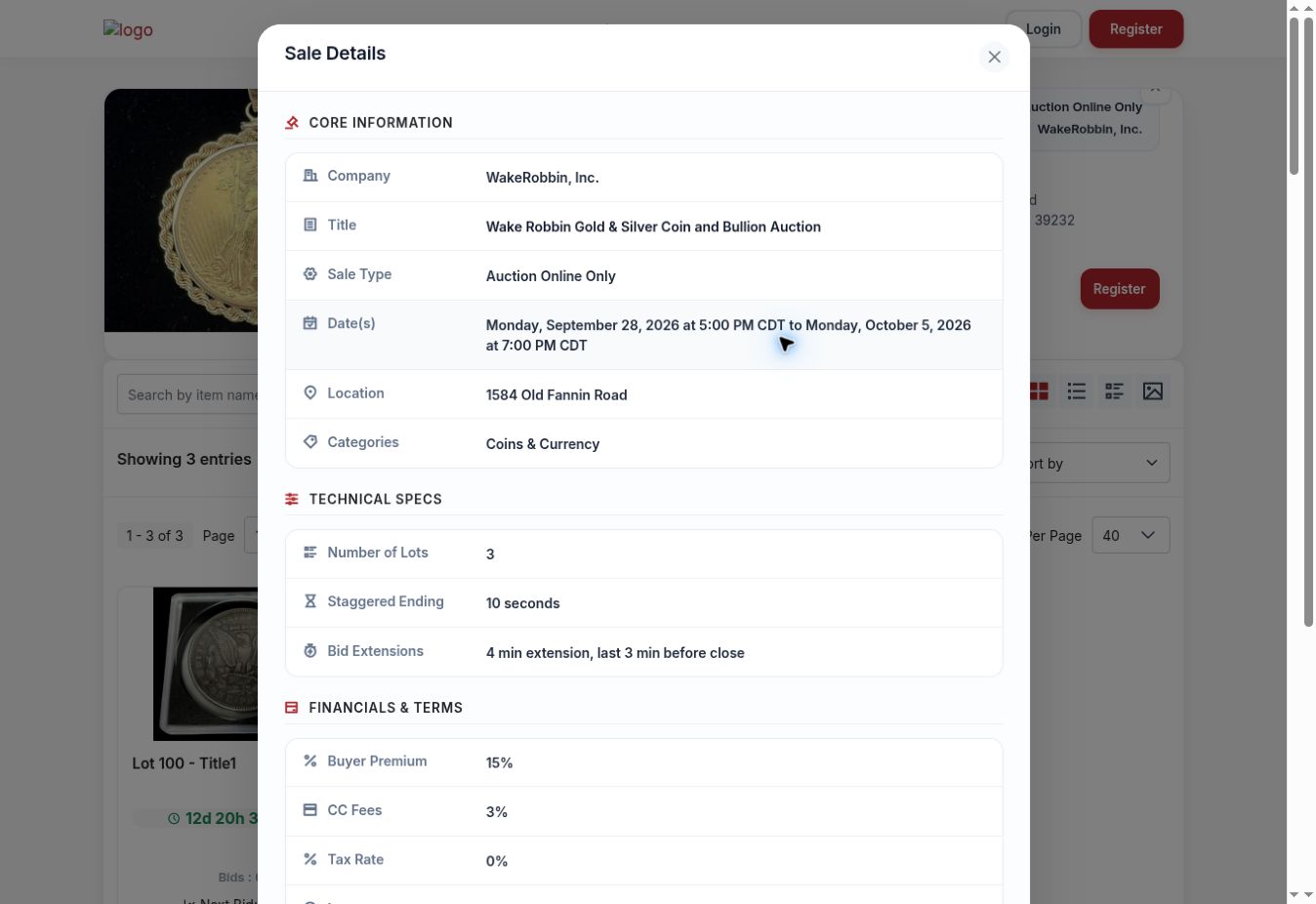 The Sale Details window. Scroll within it to see all terms and financial details.
2. Find the lots you want
Enter a word from the item name in Search by item name, then select GO!. Use Reset to clear the search. Choose a category and, when available, a subcategory, then select Filter. The sidebar also lets you narrow items by category and, when signed in, by Watching, Winning, Outbid, or Won. Show Closed includes lots that have ended.
Choose Sort by to order lots by lot number, bid activity, amount, or time remaining. Use the page controls and Per Page selector when a catalog has more items. The example sale shows three entries, so it has only one page.
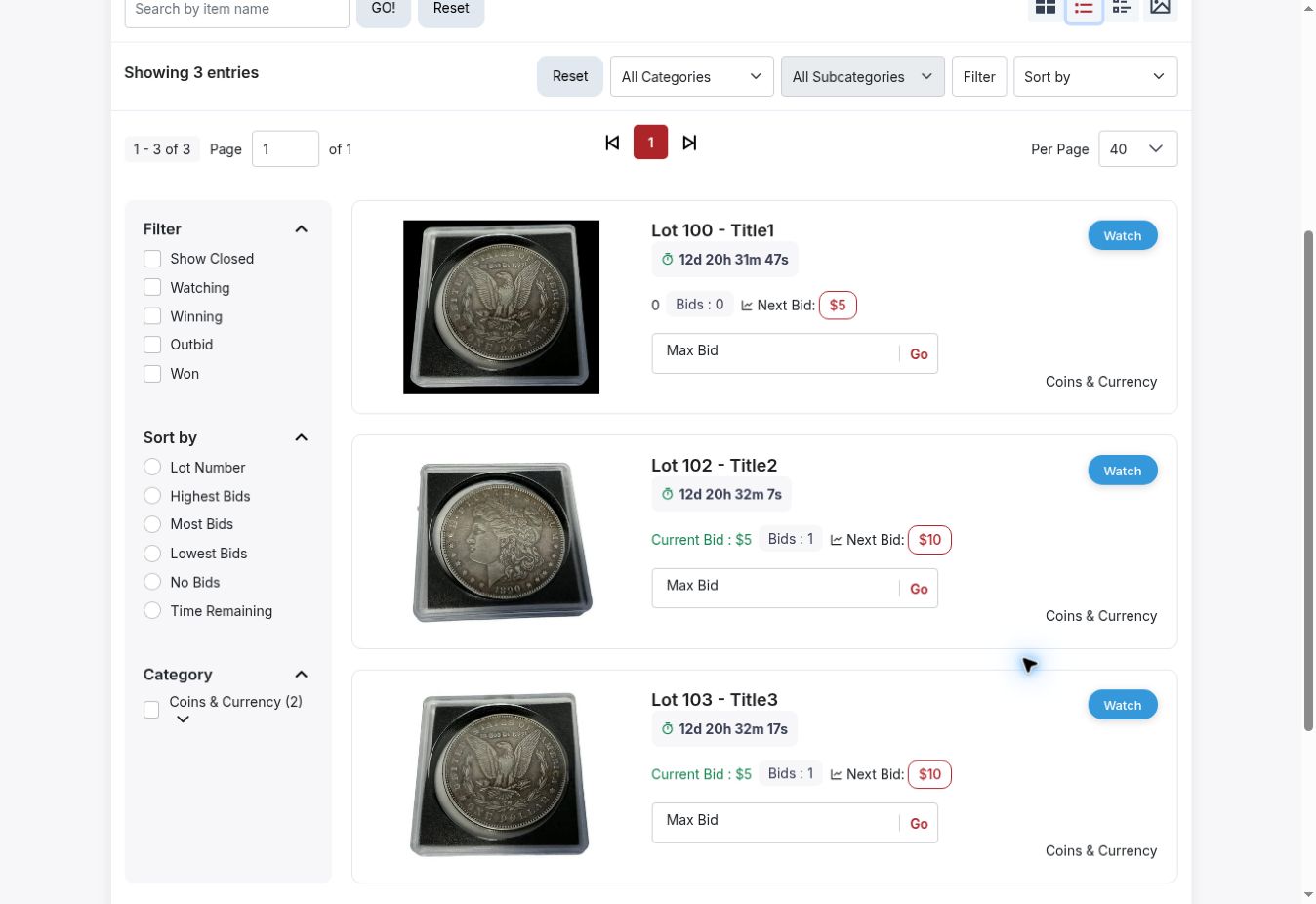 Search, filters, sorting, pagination, and list-style lot cards.
3. Choose a view
The four icons beside search change how the catalog displays. The grid icon shows compact cards; the list icon shows wider cards with more information at once. The other icons offer additional compact or image-focused layouts. Changing the view does not change the lots or your bids.
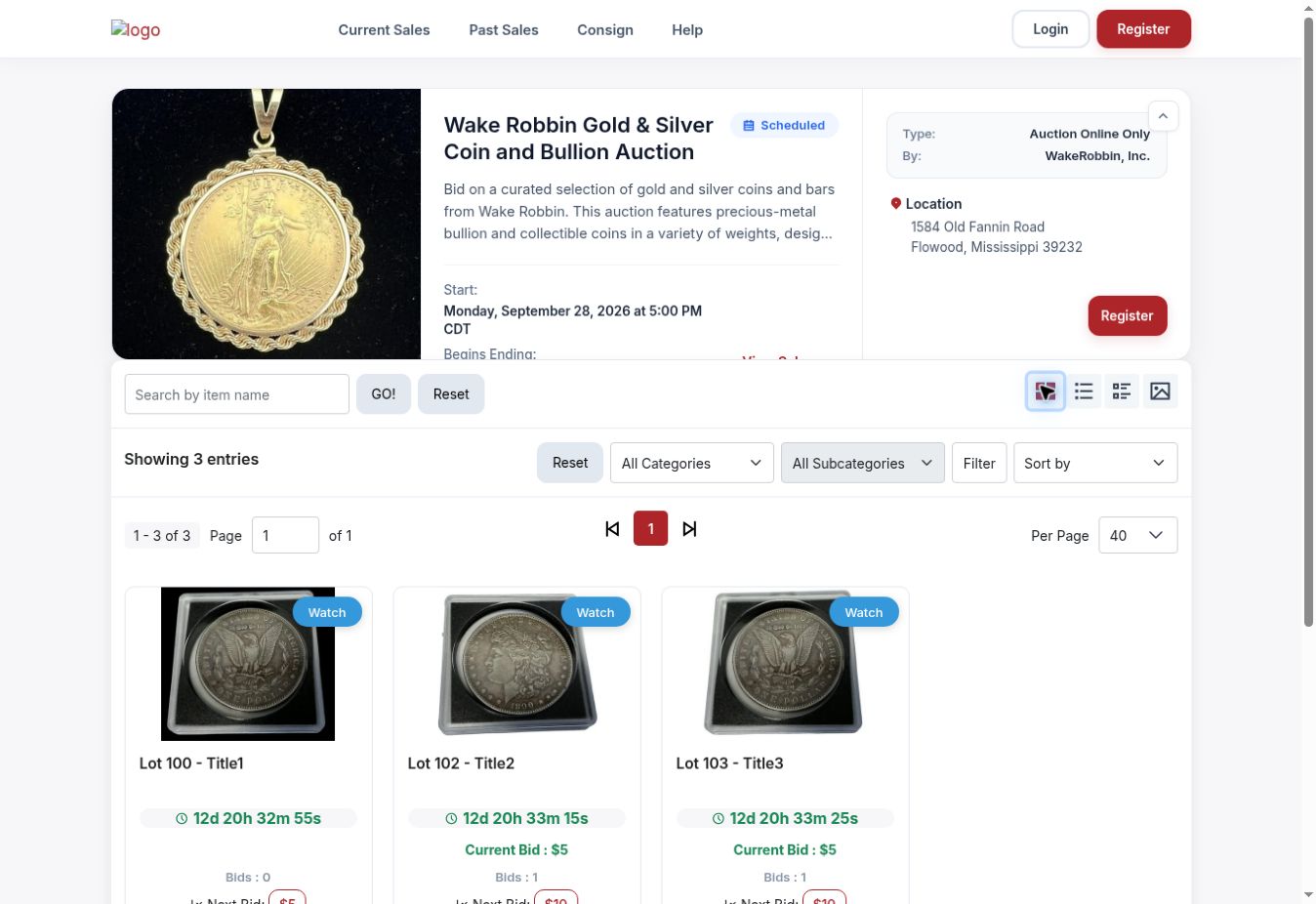 Grid view helps you scan several lots at once.
4. Understand a lot card
A lot card shows its lot number and title, picture, time remaining, number of bids, current bid if any, and Next Bid amount. Select the title or image for the detail page. The Watch control can help you return to a lot later; sign in if prompted.
A displayed Next Bid is the next allowed bid for that lot. The Max Bid field is for the highest amount you authorize the system to bid on your behalf. Entering an amount and selecting Go may place a bid when bidding is open, so review the amount carefully. This walkthrough does not place a bid.
5. Inspect the lot before bidding
On the detail page, enlarge or switch photographs, read the description, and check the lot's bid panel. Select Selling Company for seller information. Under Description, use Sale Details, Terms, and Increments to see the applicable information. Next moves to another lot; View Full Catalog returns to the sale.
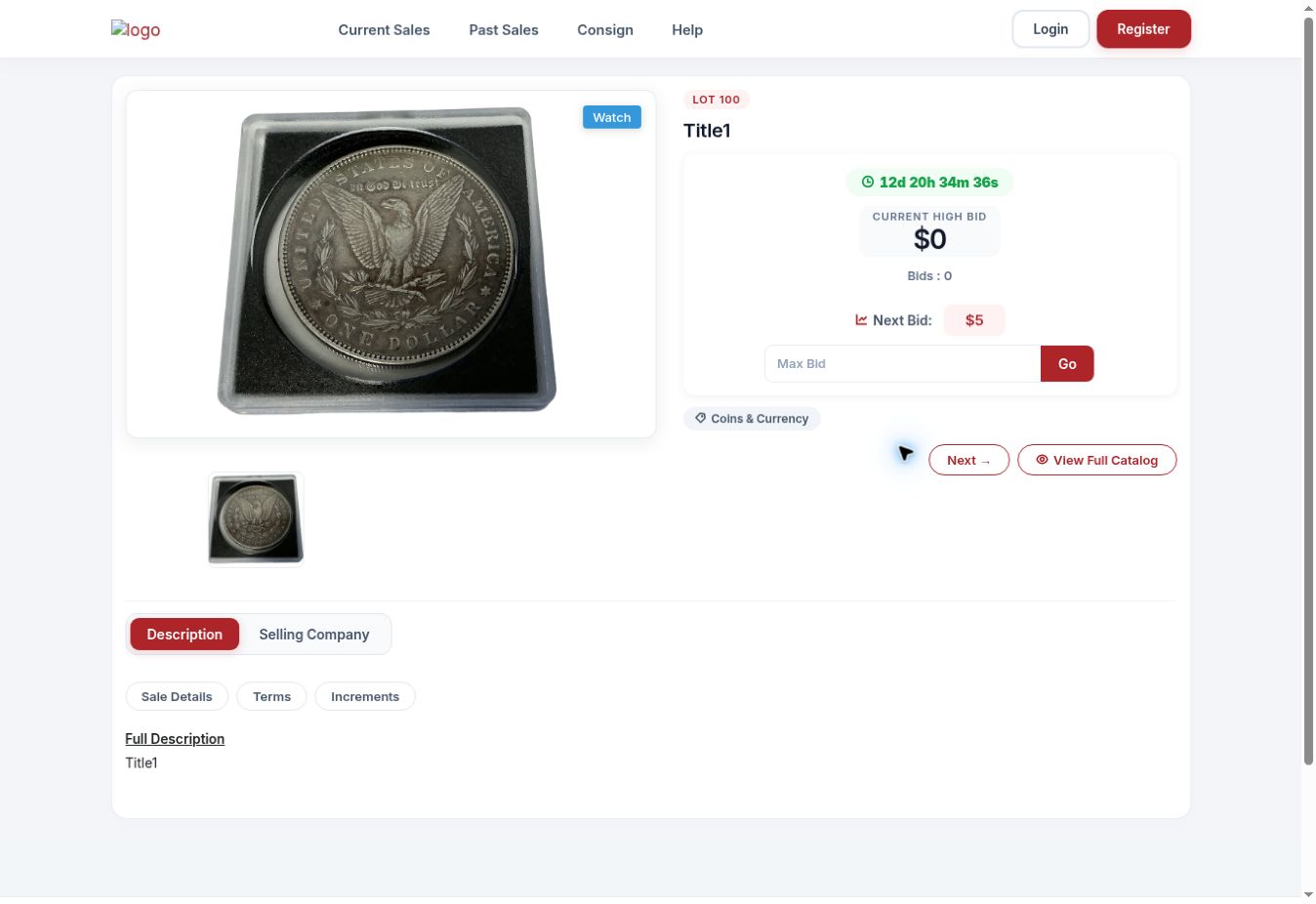 Open a lot to inspect the photographs, current high bid, and available bidding controls.
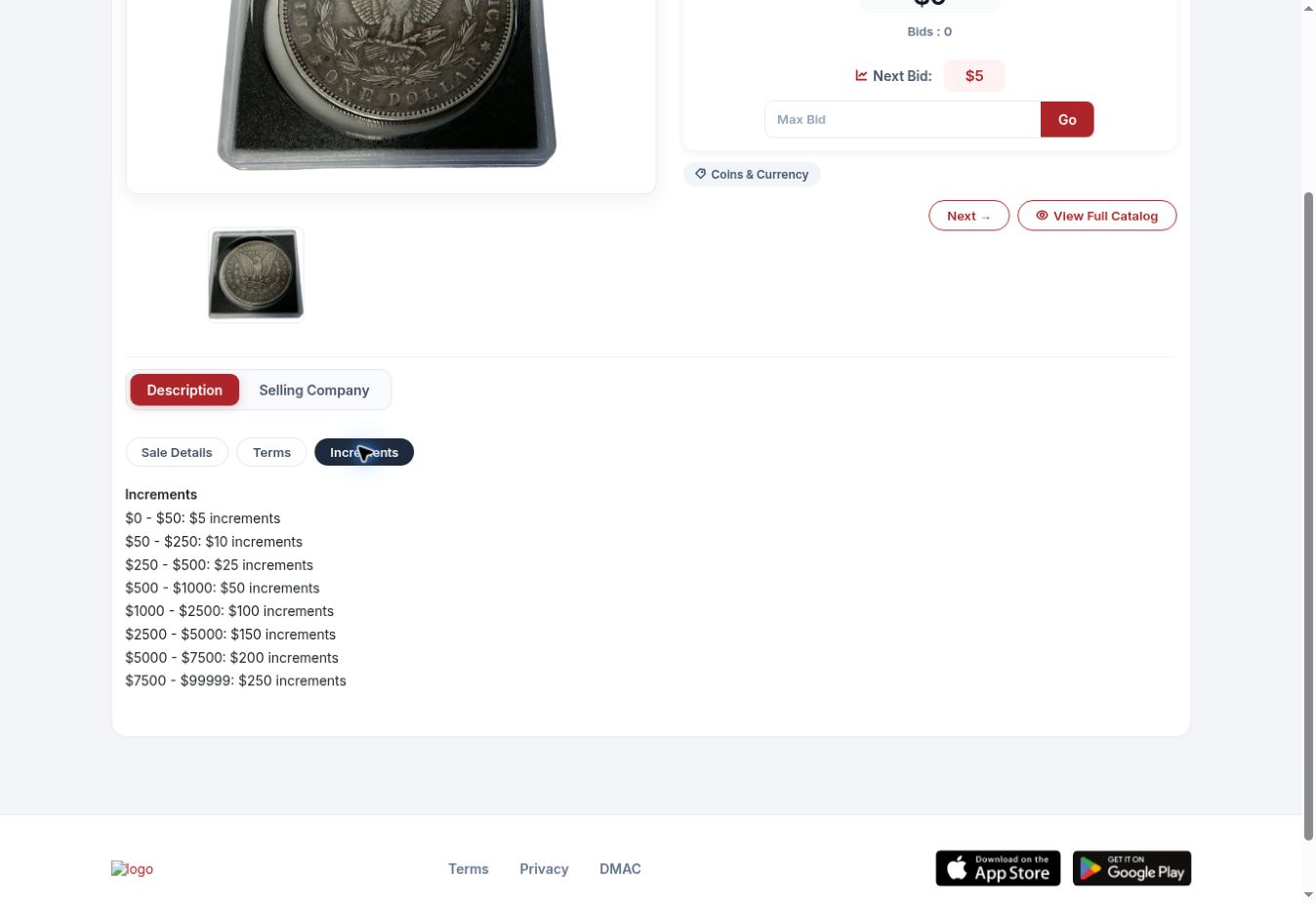 The Increments tab explains how much bids increase at different price levels.
6. Check your total cost and timing
A winning bid is only part of your total. Look for the buyer's premium, applicable taxes, card fees, shipping or insurance, and pickup requirements in the sale details and terms. For example, the sale pictured in this walkthrough displayed a 15% buyer's premium and a 3% credit-card fee; these figures are specific to that auction and can change.
Watch each lot's countdown as closing approaches. The pictured sale displayed staggered endings and an extension rule; a qualifying late bid can move a lot's final closing time. Check the current lot page and your account for your status. If you win, review your invoice and follow that auction company's payment, shipping, and pickup instructions.
Before you bid: confirm you are signed in and approved, have read the sale terms, understand the lot's condition, and know your total spending limit. If a page says Scheduled, return when bidding opens.